Respondus LockDown Browser higher ed resources and instructor guide.
Respondus LockDown Browser is a custom browser that locks down the testing environment within Quercus.
LockDown Browser only works with Quercus quizzes.
The Respondus LockDown Browser is only approved and supported by divisional request.
Please contact your local divisional educational technology office for information about the lockdown browser being available.
Students will need computer Admin password access to install Respondus LockDown Browser on their personal computer. One of the most common issues is having students successfully install the software.
To mitigate this, we suggest you create a Practice Quiz well before the actual quiz/exam, and keep this quiz open for students to try installing the browser at anytime.
Most tools in the Academic Toolbox can assist in both online and face-to-face courses. Many tools can provide benefits in either synchronous or asynchronous teaching. Some tools have been primarily designed for one format or another (synchronous/asynchronous), however, may be adapted for any format depending on your pedagogical goals.
To learn more about different teaching modalities, please consult our Online Teaching & Learning page, arrange a consultation with a CTSI Teaching Liason, or contact your Divisional support representative.
Where can I get more support?
The Respondus LockDown Browser is only available with divisional approval.
Most divisions do not have access to Respondus LockDown Browser. Consult your local communication about LockDown browser being available or contact your local divisional educational technology office to inquire if LockDown is supported for your course.
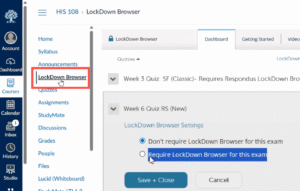
If your division does have approval, you can add Respondus LockDown Browser to your Quercus course menu, and select it to choose from the options available.

Access to Respondus LockDown Browser is from your Quercus course only.
Only approved divisional sub-accounts in Quercus will have the option to add Respondus LockDown Browser.
You will not see this option if your course is listed in a department or division which is not approved for LockDown.
Add the Respondus LockDown Browser navigation link so that it appears in your Course Navigation menu in Quercus. The Navigation Link can be found and added to your course by the following steps:

The LockDown Browser access link will be available in your Quercus course menu:

The LockDown browser works with Quercus Quizzes (both New Quizzes and classic Quizzes). There are two subtle differences to remember:
There are 3 different ways students “exit” the lockdown browser session:
Students will need computer Admin password access to install Respondus LockDown Browser on their personal computer. One of the most common issues is having students successfully install the software.
To mitigate this, we suggest you create an open practice quiz (ungraded / worth zero marks) well before the actual quiz/exam, and keep this quiz open for students to try at anytime.
It is important to communicate the use of Respondus LockDown Browser in your course with your students.
Check with your division about requirements around including a syllabus statement.
For example, the Faculty of Applied Science and Engineering recommends the following syllabus statement:
Use of Respondus LockDown Browser for Quercus Quizzes:
Some in-person quizzes in this course require the use of Respondus LockDown Browser, a custom web browser that restricts your ability to navigate away from the quiz environment in Quercus. LockDown Browser does not record or monitor you, but you must install the application on a compatible Windows or macOS laptop before completing any quiz that uses it. You must also download Respondus LockDown Browser using the University of Toronto–specific link provided here: U of T Respondus LockDown Browser download link. A practice quiz will be provided to help you test your setup and confirm that LockDown Browser is working correctly.
If you do not have a compatible device, contact the instructor as early as possible.
UTSC provides a resource for generating a course announcement when using Respondus LockDown Browser in your course.
Rotman provides a communication announcement. Consult “The Faculty Side” tab of their Respondus LockDown Browser information page.
Respondus LockDown Browser higher ed resources and instructor guide.

UTSC Centre for Teaching and Learning:
EdTech Tip Sheets – Respondus Lockdown Browser
Rotman Digital:
Faculty of Applied Science and Engineering (FASE):
Privacy Considerations:
Last Modified:
6 April, 2026
This work is licensed under a Creative Commons BY-NC-SA 4.0 International License