
Before You Begin
Before using UT OMR Grade Upload, review the following restrictions:
- Group assignments: The tool cannot upload grades or comments for group assignments.
- Section-restricted access: Instructors and course staff restricted to their own sections can select only assignments available to those sections and upload grades only for students enrolled in those sections.
- New assignments: Assignments created through the tool are assigned to everyone in the course, even when the instructor or course staff member has section-restricted access.
- Comment uploads: The comment upload feature is currently in beta.
Accessing UT OMR Grade Upload
UT OMR Grade Upload is available in Quercus courses to users with the Teacher, TA, Course Staff, or Grader role.
To make the tool accessible through your course navigation menu:
- In your Quercus course, select Settings.
- Select the Navigation tab.
- Find UT OMR Grade Upload in the list of hidden navigation items.
- Drag UT OMR Grade Upload into the list of visible navigation items and position it where you would like it to appear in your course menu.
- Select Save.
The tool will now appear in your course navigation menu.
Preparing Your Grade File
UT OMR Grade Upload accepts Excel or CSV files containing grades and student identifiers.
Your file must include:
- A column containing grades.
- A column containing student numbers or UTORids.
You may also include a column containing comments associated with individual students’ grades. The comment upload feature is currently in beta.
If your file contains multiple columns with student identifiers, you can select only one column to identify students during the upload process.
For optical mark recognition assessments, consider creating an assignment in Quercus before uploading grades. Choose No Submission or On Paper as the submission type. This creates a Gradebook column for the imported grades.
UT OMR Grade Upload cannot be used to upload grades into a Quercus Quiz. Use the Quercus Gradebook import function for that purpose.
Uploading Grades to Quercus
Before uploading grades, review the assignment’s grade posting policy to ensure grades are not released to students before you intend to share them. A manual posting policy allows instructors to review grades before posting them.
Once your grade file is prepared:
- Select UT OMR Grade Upload from your Quercus course navigation menu.
- Select Choose File and locate your Excel or CSV file.
- If your file does not contain a header row, deselect File contains column headings.
- Select Upload Grades.
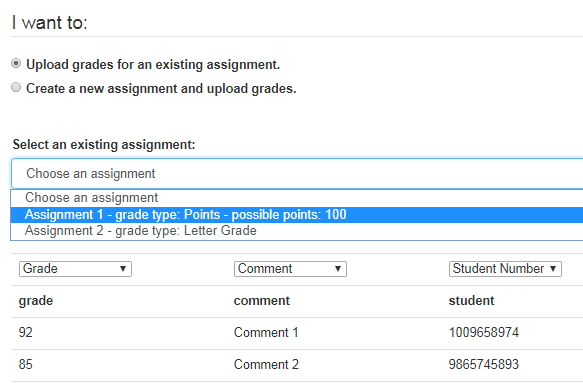
- Choose whether to Upload grades for an existing assignment or Create a new assignment and upload grades.

Uploading Grades to an Existing Assignment
Creating a New Assignment and Uploading Grades
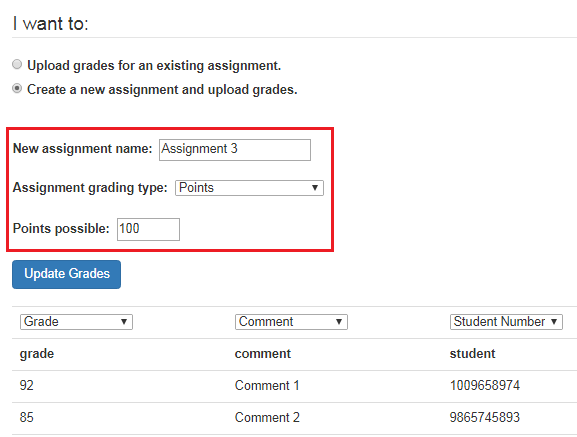
If you are creating a new assignment:
- Enter the New assignment name.
- Select the Assignment grading type from the drop-down menu.
- Enter the Points possible for the assignment.
The newly created assignment is assigned to everyone in the course. However, instructors and course staff who are restricted to interacting with their own sections can upload grades only for students enrolled in those sections.
Matching Columns and Updating Grades
After selecting an existing assignment or creating a new one:
- From the drop-down menus, select Student Number or UTORid for the column containing student identifiers. If your file contains more than one student identifier column, select only one.
- Select Grade for the column containing grades.
- If your file includes comments, select Comment for the appropriate column.
- Leave any additional, unused columns set to the default blank option.
- Select Update Grades to complete the upload.

Additional Information and Support
If you experience difficulties uploading a grade file, check that the file contains no extra spaces or rows between the column headings and the data. If an older Excel (.xls) file does not upload successfully, try saving it as an XLSX or CSV file.
Additional guidance is available from local academic units:
- University of Toronto Mississauga (UTM): UT OMR Grade Upload Tool (Uploading Scantron Grades)
- University of Toronto Scarborough (UTSC): Scantron Services
- Faculty of Applied Science & Engineering: How do I upload grades via the UT OMR Grade Upload Tool?
For assistance with Quercus, contact your divisional teaching and learning technology support team.