
Opencast

The Opencast Content Capture System (OCCS) allows for lectures to be recorded live within a classroom and stored, edited and shared within a Quercus course.
Opencast software is for automated content capture, processing, managing, and distribution.
Academic Content Retention Policy
Tech2U will retain your course content recordings on the OCCS server temporarily, for a maximum duration of one academic term. By the end of the term, all your content will be deleted from the server at the start of the next term. For example, Fall term content will be deleted at the beginning of Winter term.
You will receive a reminder email from Tech2U. You may then choose to store this content on your own MyMedia account, personal OneDrive account, or another content storing platform of your choosing. We cannot extend this deadline past the end date. Please ensure that you make plans ahead of time to move your content off the server.
OCCS in Quercus is available in the following Divisions:
- The Leslie Dan Faculty of Pharmacy
- Faculty of Arts and Science
- Faculty of Dentistry
- Faculty of Music
- Faculty of Kinesiology and Physical Education
- Lawrence S. Bloomberg Faculty of Nursing
- School of Graduate Studies
- Woodsworth College
- Faculty of Applied Science & Engineering
- Transitional Year Programme
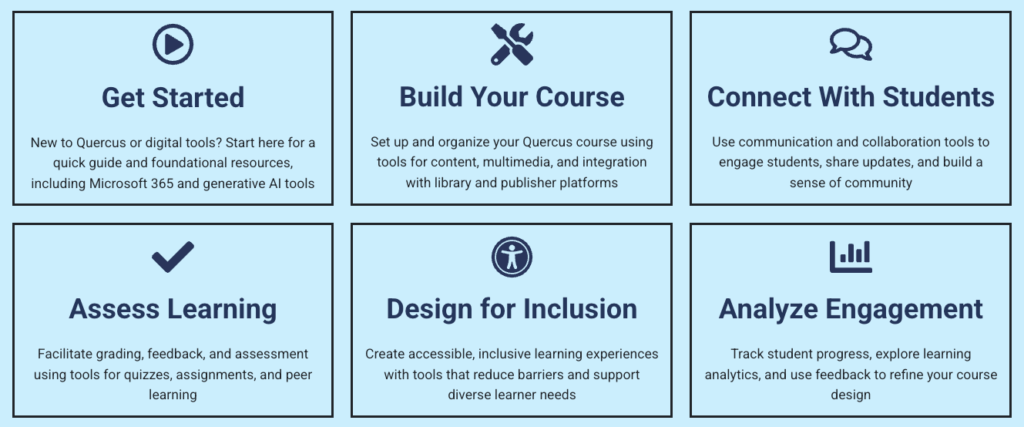
The Academic Toolbox helps you...
Typical Course Format?
Most tools in the Academic Toolbox can assist in both online and face-to-face courses. Many tools can provide benefits in either synchronous or asynchronous teaching. Some tools have been primarily designed for one format or another (synchronous/asynchronous), however, may be adapted for any format depending on your pedagogical goals.
To learn more about different teaching modalities, please consult our Online Teaching & Learning page, arrange a consultation with a CTSI Teaching Liason, or contact your Divisional support representative.
Where can I get more support?
Instructions
-
Access the Tool
To use OCCS within a Quercus course, two elements must be enabled.
OCCS Instructor: Where Instructors will interact with stored recordings, edit, and publish them for student view. this cannot be seen by students in the course.
OCCS Student: Where Students will watch the videos after they have been published.
-
- In the Course Menu, click Settings.
- Click Navigation at the top.
- From the bottom list, drag the OCCS Instructors and OCCS Student items to the top list.
- Click Save.
-
-
The first time you go into the OCCS Instructor interface, you will need to subscribe to the System. Please consult the Additional Documentation below for further information on using OCCS.
Guides
-
Opencast documentation is available at https://docs.opencast.org/


Last Modified:
23 October, 2026
This work is licensed under a Creative Commons BY-NC-SA 4.0 International License