
Microsoft 365 OneDrive PDF editor

When opening a PDF file from within OneDrive or Sharepoint web, various options are available including:
- Annotation and markup tools
- Extract PDF pages and make a new PDF
- Merge PDF pages into a new PDF
- Compress your PDF file size
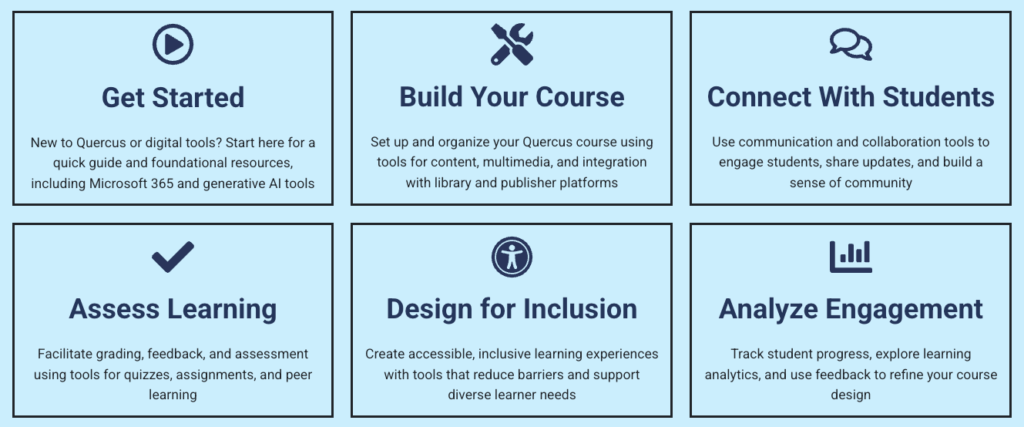
The Academic Toolbox helps you...
Typical Course Format?
Most tools in the Academic Toolbox can assist in both online and face-to-face courses. Many tools can provide benefits in either synchronous or asynchronous teaching. Some tools have been primarily designed for one format or another (synchronous/asynchronous), however, may be adapted for any format depending on your pedagogical goals.
To learn more about different teaching modalities, please consult our Online Teaching & Learning page, arrange a consultation with a CTSI Teaching Liason, or contact your Divisional support representative.
Where can I get more support?
How to Get Started
| Annotation and markup tools | Easily collaborate and share feedback by using digital ink, highlighting text, drawing shapes, and inserting sticky notes directly onto your PDF files. |
| Extract PDF pages | Easily extract specific pages from your PDF documents to create new, smaller files. Ideal for sharing only the most relevant sections. |
| Merge PDFs | Seamlessly combine multiple PDFs into a single, organized document. Perfect for consolidating reports, presentations, and more. |
| Bookmark PDF pages | Navigate effortlessly through lengthy documents by adding bookmarks to important sections, just like using tabs in a physical book. |
| Change the appearance of your PDF | Enhance your reading experience by adjusting the background color of your PDFs to dark mode, sepia mode, or light mode. Ideal for reading in different lighting conditions. |
| Rotate PDF pages | Correct the orientation of scanned documents by rotating individual or multiple pages 90° clockwise. Perfect for fixing upside-down or sideways pages. |
| Jump to specific PDF page using Table of Contents | Quickly access specific sections by jumping directly to any page in your PDF documents using a clickable table of contents. |
Last Modified:
4 February, 2026
This work is licensed under a Creative Commons BY-NC-SA 4.0 International License