
Cogniti

Cogniti enables the authoring of generative AI virtual chatbots tailored for students to engage with course content and facilitate their learning. Cogniti incorporates key educational features designed for instructors to gain insight into students’ engagement with the platform. Cogniti integrates with Quercus to fit into your existing course workflow. Cogniti is easy to use, accessible, and practical for instructors across all disciplines.
Unlike general-purpose generative AI tools like ChatGPT or Copilot, Cogniti is configured to respond based on the content, context, and learning goals you define.
In the Cogniti system virtual tutors / course chatbots / custom GPTs; are called “agents”.
Cogniti is available to be added to any Quercus course menu, however instructors must Request Ability to Create Cogniti Agents before being able to create and deploy agents.
If you are currently using Cogniti and have a need to create more than the default 5 agents, Request an Increase to Your Cogniti Agent Limit.
The Academic Toolbox helps you...
Typical Course Format?
Most tools in the Academic Toolbox can assist in both online and face-to-face courses. Many tools can provide benefits in either synchronous or asynchronous teaching. Some tools have been primarily designed for one format or another (synchronous/asynchronous), however, may be adapted for any format depending on your pedagogical goals.
To learn more about different teaching modalities, please consult our Online Teaching & Learning page, arrange a consultation with a CTSI Teaching Liason, or contact your Divisional support representative.
Where can I get more support?
Related resources / similar tools
How to Get Started
- First time users: ensure your default Quercus email is @utoronto.ca or @mail.utoronto.ca.
- Instructor access to the Cogniti system is via your Quercus course menu.
– Manually add the Congiti UAT link to your Quercus course menu.
– Access the Cogniti system for the first time by selecting the Congiti UAT from your Quercus course menu. This will create your account in the Cogniti system, however you won’t yet have the ability to create agents.

- Request Ability to Create Cogniti Agents and wait for confirmation that your account has been approved to create Cogniti agents.
- You can create up to 5 Cogniti agents. You can start with a blank agent or create from a template.
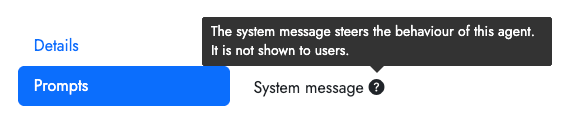
– Before creating your first agent, consider what you want your agent to do for your students. The design process is better thought out before you start building your first agent. Reference the University of Sydney guide on how to design custom AI agents that can propel learning for an outline of what will make a good system message for your agent. The system message is the instructions you give to your agent on what you want it to do and how to behave.
- Chat with and edit your agent.
Edit your agent’s settings using the pencil icon. Some of the main settings to configure are:
– System Prompt / System message.
– Resources (add course materials that you want your agent to use as grounding material when forming responses.)
Chat with your agent using the chat bubble icon. Test your agent’s responses by chatting with it to ensure it is responding in the manner you desire.
- Student access is different.
– Students do not access Cogniti from the Cogniti UAT link in your Quercus course menu. A Quercus page is necessary as the home for your agent in your Quercus course.
– Once you are ready to make your agent available to your students, create a new Quercus page and add the agent via the electrical plug icon in the Quercus Page editor.
– Students access is always within your Quercus course (‘share’ links that are listed directly in the Cogniti sharing area will not work).
– Before sharing with your students, remember to outline and clarify the purpose and intent of using the agent, and explain the context as to why you have developed this Cogniti Agent for them. Reference the University of Sydney guide “Four strategies for implementing custom AIs that help students learn, not outsource“. - Find out how well your agent is doing.
– View insights (the arrow graph icon) which will give an AI generated summary of how students are interacting with your agent.
– Conversation history (the clock icon) will show full transcripts of individual interactions. (student interactions with your agent are anonymous, only the input and output text information is saved.)


Connect with other Faculty using Cogniti and ask questions in the CTSI Gen AI in Teaching and Learning Commons MS Teams community.
Instructions
-
- Ensure that your default email in Quercus is “utoronto.ca” or “mail.utoronto.ca” (It can not be rotman.utoronto.ca, dentistry.utoronto.ca, etc.). See this guide on how to change your default Quercus email.
- Manually add the Congiti UAT link to your Quercus course menu. (Instructions below “Add Cogniti access to your Quercus course“)
- Select/click on the Cogniti UAT link one time. This will create your account in the Cogniti system, however you will not be able to create agents yet.
- Request Ability to Create Cogniti Agents. Wait for confirmation that your account has been approved to create Cogniti agents.
-
Add the Cogniti UAT access link to your Quercus course:
- In your Quercus course, select “Settings” from your course menu.
- Select the “Navigation” tab.
- Look for “Cogniti UAT“. Drag it up from the ‘hidden from students’ area and drop into the visible section of your course navigation list.
- Scroll down and select the blue “Save” button.
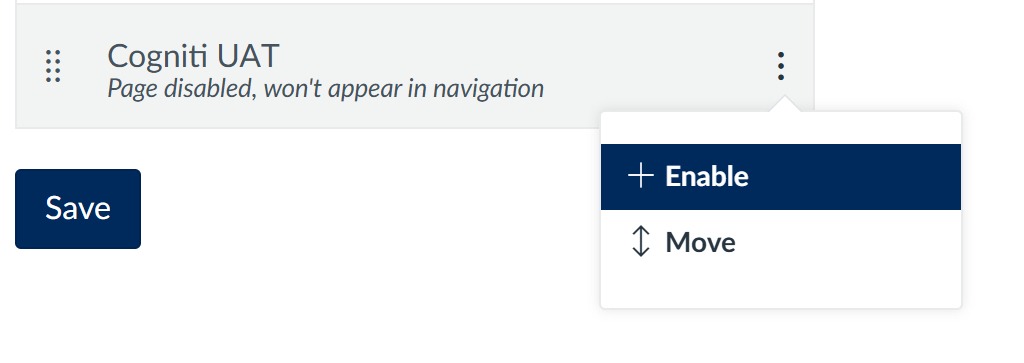
The “Cogniti UAT” link should now be listed in your course menu:
(alternative to the drag & drop, you can select the vertical ellipsis / 3 dots and choose “+ Enable”, then Save):
.
-
Instructors (& TAs) must always use the “Cogniti UAT” Quercus course menu link when creating and editing Cogniti agents.
- Other people helping you build/edit your agents like TAs or additional support staff, access is with this same link in your Quercus course menu.
- Students will NOT see the Cogniti UAT button in your course menu, only Teacher and TA roles in your Quercus course.
The Cogniti UAT link will open up a new browser window with the full Cogniti interface at a cognitiproject URL. DO NOT save or bookmark this cognitiproject URL, as you can not access Cogniti alone via this URL.
If you are trying to access the main Cogniti interface and receive an error message, close your tab/window and try again through the Cogniti UAT link in your Quercus course.
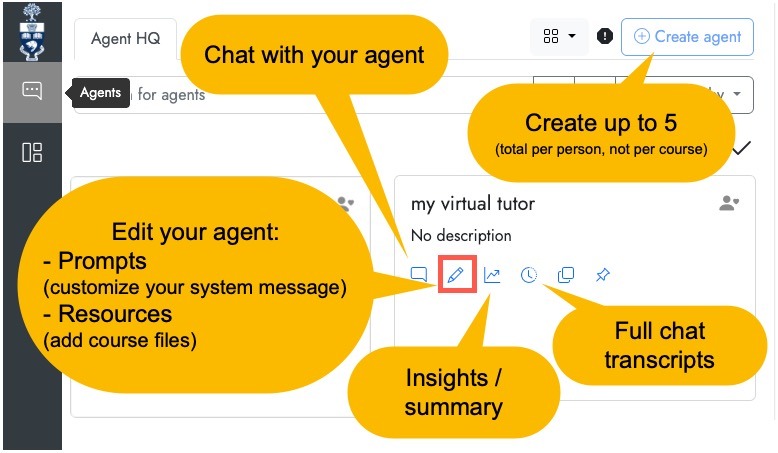
The Cogniti main menu looks something like this where you can choose from the following options:
- “Create agent” (you will not have the ability to create agents until you submit the Request form)
Once you have created your first agent, you will see the following:
- Start a chat with your agent (to test its abilities)
- Edit your agent. The 2 main areas you will want to edit are:
- Insights provides an auto generated summary of what kinds of topics and questions your students have been asking
- Conversation history is a log off all the chat transcripts that have occurred with your agent (student names are removed).
-
Students will NOT see the Cogniti UAT link in your Quercus course menu.
- Students can only access the specific Cogniti agents that you choose to add to a Quercus course page.
Cogniti agents are added to your Quercus course via the tools in the Quercus Rich Text Editor. This is how students will access your Cogniti Agent.
1. Create a new Quercus Page. We recommend making the Quercus page Title the same as your Cogniti Agent Name (to keep track of which Quercus page is associated with which Cogniti Agent).
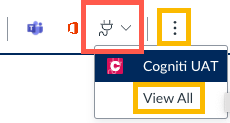
2. Edit the Quercus page, select the icon that looks like an electrical plug, and select “Cogniti UAT”:
- The electrical plug ‘apps’ icon will be beside the red OneDrive icon in the RCE toolbar. If you do not see this icon, select the vertical ellipses (3 dots).
- You might need to select “View All” from the electrical plug ‘apps’ icon first and then select “Cogniti UAT” from the list
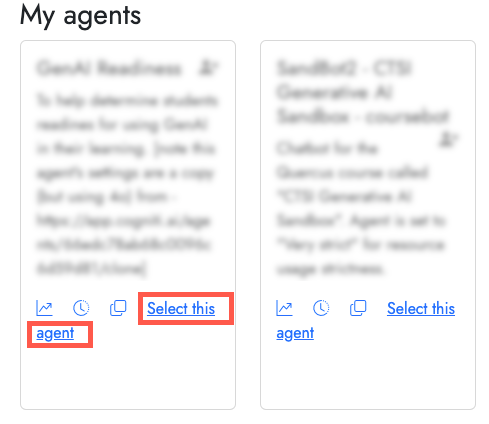
3. Browse the listing of agents you have created or have access to, and choose “Select this agent” to add it to your page.
4. Save (or Save & Publish) the Quercus page.When you are ready to make your agent available to your students, remember to publish the Quercus page based on how you normally share other Quercus pages with your students. Typically pages are added to modules, but your course set-up may be different.Everyone listed in the ‘people’ section of your Quercus course (students, TAs, etc.) can chat with this specific Cogniti Agent via this Quercus Page.
You can also share this Quercus Page URL (not the Cogniti URL) with your students in other areas like Announcements, email, using the Quercus redirect tool, or in other approved teaching and learning tools like Piazza.
-
Consult the University of Sydney guide “Four strategies for implementing custom AIs that help students learn, not outsource“.
- Give students the context
- Model how to interact with the agent
- Emphasize the value for learning
- Invite reflection and feedback
- Encourage your student to provide feedback to Cogniti when they interact with the chatbot. They can rate by hovering over the Cogniti response and selecting a Thumbs-up or Thumbs-down. Inappropriate responses by the chatbot can be Flagged. Students can include written comments when providing response feedback.
- Reinforce with your students that they should refrain from including personally-identifying information in their chats.
- Student identities are not included in chat history – instructors will have access to de-identified data only.
- Students can manually export their own person chat history: How can I see my past conversations with agents? – Cogniti
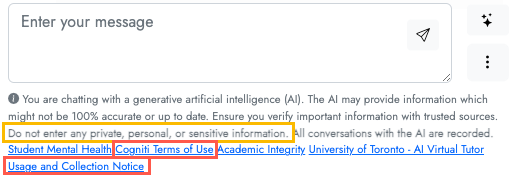
A Cogniti Terms of Use acknowledgement is presented to students upon first use of the chat tool, and can be accessed anytime at the bottom of every Cogniti chat window along with a reminder about not sharing private information and data collection:
-
Adding course resources is done by editing your agent (the pencil icon), and the choosing the “Resources” section.
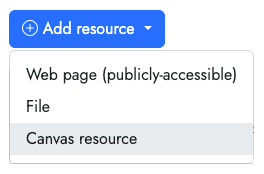
This is what the main “Resources” interface looks like (Canvas resource = Quercus):
If you choose to enable the option “Agent should cite any resource(s) that it uses“, the referencing capability depends on how materials are uploaded in the Resources area of your agent:
- Web page → the AI agent can both use the info and provide a reference (hyperlink) back to the source public web page.
- File (uploaded directly in Cogniti) → the AI agent can read/search inside it and use the info, but it does not provide a link back to the file itself.
- Canvas resource (uploaded in Quercus and then attached to Cogniti) → the AI agent can both use the info and provide a reference (hyperlink) back to the whole source document.
In the Cogniti system, “Canvas resource” means adding a file that is already in your Quercus course. Upload files first to your Quercus course and then select them from Cogniti. Canvas resource is the most common method for adding course resources.
Notes about adding resource files:
- Resources can only be text searchable (no imbedded images or videos will be included).
- You can however include text transcripts of videos (lecture video transcripts for example).
- If there are images in your files that contain significance, provide a text description or surrounding explanations.
- Powerpoint files should be saved/exported as text readable pdf files.
- Only the text part of files will be readable to the agent. Your agent will not know context about images, videos or any other other non-text elements. That information will need to be created, so your agent has all of the information it needs to provide good responses.
- You can add files in a batch, but you can also only update/remove them in that same batch. We recommend adding them in smaller groups or one at a time to allow for flexibly if you need to make changes later.
- Library resources must be added by the pdf from your Quercus course (not the library reading list or library website URL).
- Most library content that can go into a protected LMS (Quercus) can also go into a protected/non-training AI system (Cogniti), however not all publisher content is ok. It is still a good idea to check with your Faculty Liaison Librarian if you are unsure.
- If you want your agent to cite (link to the source file), remember that file must be available/published in your Quercus course for students to access.
- You can choose any file from Quercus, published or unpublished (when selecting, you will see either a check mark or X indication).
A few notes about how agents use your resources:
- In your system message, do not refer to your resources – this will not make sense to the underlying AI, because all it sees are little snippets, not “the document / file”
- Only snippets of the resources are sent to the large language model for consideration, not the full resource.
- “kind of” like when you make a standard google search – only keywords/phrases are found and extracted for use by the model when it formulates it’s response.
- If you have information that is critical to the function of your agent, ensure you put that information into the system message or the “Knowledge” area.
- Best to chunk into focused areas, rather than including a lot of full text that may or may not be as relevant when the agent looks for answers.
- It is also a good idea to “clean” your resources for better quality and more accurate responses from your agent. Please visit our CTSI guide on Preparing Content for Custom AI Chatbots: Guidance on how to organize, clean, and format course materials for use with custom AI chatbots, ensuring accurate, relevant, and efficient AI responses:
Web page | PDF | Word
-
Access your system message by editing your agent (the pencil icon), and the choosing the “Prompts” section:
Consult the following resources to assist with building your custom System message (system prompt):
CTSI Teaching with Generative AI resources –
- Effective Prompting Strategies: Offers evidence-based prompting techniques and sample questions to help students get the most out of AI virtual tutors, supporting personalized learning, critical thinking, and deeper understanding of course material.
Web page | PDF | Word - Developing an Effective System Prompt: Offers strategies to translate your teaching goals into effective system prompts that scaffold student learning and maintain pedagogical integrity.
Web page | PDF | Word
Teaching @ Sydney guides:
- How to design custom AIs that can propel learning – The role of system message.
- Using the RTRI framework: ‘Role(+User) – Task – Requirements – Instructions(+Rules)’
- Aligning system messages with pedagogical intent
- 7 tips for writing an effective, pedagogically-focused system message
- How do I design a good system message? (Cogniti guide)
- What does a system message do?
- What are the basic components of a good system message?
- How long should a system message be?
Other resources:
- Effective Prompting Strategies: Offers evidence-based prompting techniques and sample questions to help students get the most out of AI virtual tutors, supporting personalized learning, critical thinking, and deeper understanding of course material.
-
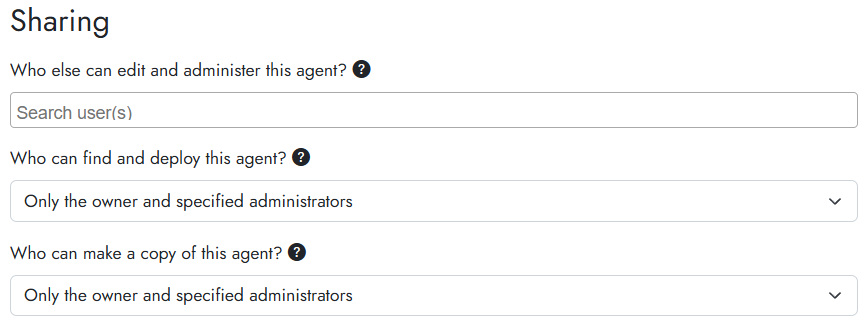
You can give access to other people helping design/build/edit your agent. This requires three steps:
1. Add them to your Quercus course.
In the “People” section of your course, you can add someone with their UTORid username, or email address.
Their role must be of “Teacher” or “TA”.
2. Once added in Quercus, that person must select the “Cogniti UAT” link in your Quercus course menu.
(By them entering the Cogniti system for the first time, their account in Cogniti will be created.)3. In the “Sharing” area in your Cogniti Agent (select the pencil ‘edit’ icon, and then “Sharing”), search for and add the person in the “Who else can edit and administer this agent?” section.
-
- A Cogniti sandbox is an educator-controlled space where students can create their own AI chatbots.
The Sandbox feature is not enabled by default.
- Please contact Derek in MS Teams or the CTSI GenAI in Teaching & Learning Teams channel for information and access for this Sandbox feature.
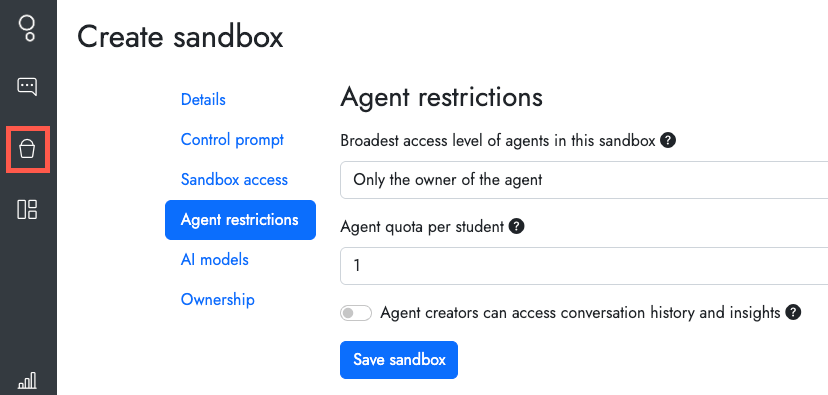
Once you have been given access to create sandboxes, look for the Sand Pail icon in your Cogniti menu:
#1 – Create a Sandbox space for your students. This sandbox is a space/folder where your student will create their agents within. Think of it as a little mini-Cogniti space of their own in your course
The following settings must be set/checked before you can create sandboxes for your students:
- Details: required.
- You must give your Sandbox a name. To avoid confusion, create a name that includes your course name and is related to the activity.
- Control Prompt: optional.
- A sort-of prompt checker. The instructor can put some rules in place for what students can enter as their student-created system prompt.
- Sandbox access: required.
- Change to the default “anyone who accesses this sandbox via an LTI connection“.
- You must specify a sandbox access period (including both a date and time).
- Agent restrictions: required.
- Broadest access level of agents in this sandbox: This option allows students the choice to share their agent with the rest of the class – change to “Anyone who can access this sandbox”.
- Agent Quota per student: Must change from 0 (zero) to at least 1.
- AI models: required.
- Must choose from one of the allowed AI models
- Ownership: optional.
- leave as default, unless you have course staff assisting with the development and administration of your sandboxes.
#2 – Give students a link to create an Agent in the Sandbox. Students access to the Sandbox is almost the same as a regular cogniti agent, only this time you select from the “Sandboxes” tab, rather than from your list of Agents:
#3 – Other notes about Cogniti Sandboxes:
- As the instructor, you will have access to see all of your student’s agents and access all agent information:
- Start Chat, Edit Agent (to view their system message, settings), View Insights, View Conversation History.
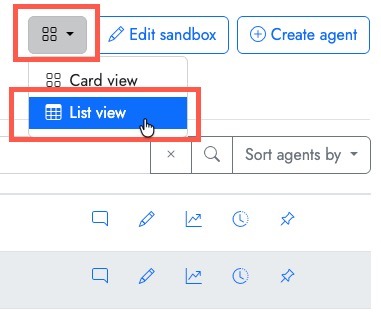
- You must change your view from Card View to List View to see your student’s agent information:
- However, the list will be displayed using the Agent name created by your students. You can not view/sort them by student name or any other attribute, only agent name. A good practice might be to ask your students to name their agents using their own name as a way for you to view all of their agents.
- By default, students can only see and interact with their own agents.
- Students can adjust this to share their Agent with the class.
- In the student’s Agent settings -> Chat access -> Who can find this Agent? / Who is authorised to chat with this agent? – Change to “Anyone with access to this Sandbox”.
-
The Cogniti Sandbox is a space where student’s can create their own chatbots.
This feature must be enabled by your instructor.
Once your instructor has setup the Cogniti sandbox area, the Quercus page should look something like this:Creating your personal chatbot (or “agent” as it’s called in Cogniti):
- Select the blue “(+) Create agent” button near the top right corner of the Cogniti sandbox
- Select “Start with a blank agent”
- Give your agent a “Name“ and short description. (Follow the instructions given to you by your instructor in terms of the proper naming convention they would like you to use. This is important for your instructor to identify your agent.)
- You can enter a “System message“, however this can always be added/modified later.
- In general, do not modify the Temperature or AI Model unless your instructor give guidance for this.
- Save agent
Chat or edit your Cogniti agent:
Once you have created your Cogniti agent, you can chat with your agent using the chat bubble icon, or edit your agent settings using the pencil icon:
Share your agent with your classmates:
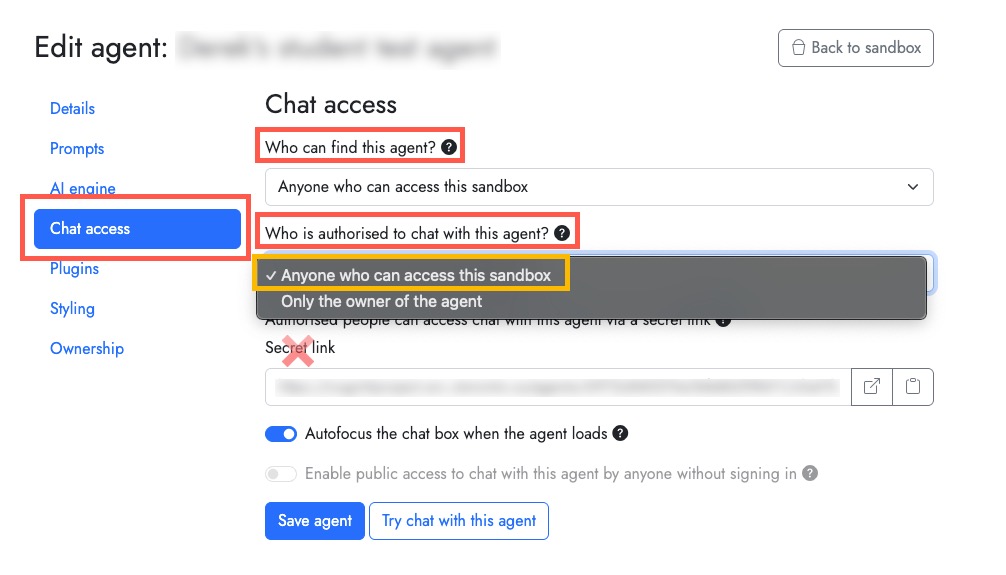
By default your agent is private to you and your instructor. If your instructor allows, you can choose to share your agent with the class. Change these setting (in the pencil / edit agent area):
- Edit your agent (edit area / pencil icon)
- Select the “Chat access” section
- In the section “Who can find this agent?“, change to “Anyone who can access this sandbox”
- In the section “Who is authorized to chat with this agent?“, change to “Anyone who can access this sandbox”
- Save agent
(note: do not use the Secret link URL option – it does not work and will cause errors)
-
- Start by downloading your anonymized Cogniti student chat data (the clock symbol for your Cogniti agent):
- Then select “Export all conversations” to download a CSV file to your computer or OneDrive.
- Open Microsoft Copilot (or another University approved tool), attach your CSV transcript file.
- Begin with a broad orientation prompt such as: “I have uploaded anonymized student chat transcripts from an education-focused generative AI chatbot.”. Add onto your prompt with some targeted suggestions below:
Course Alignment.
Were students using the tool in ways that matched your learning objectives? Look for off-topic use, surface-level requests, or gaps in expected content areas.
Copilot Prompt ideas:- “Summarize the main topics students asked about. How well do these align with a course focused on [course topic]?”
- “Were there any major course topics that appeared rarely or not at all in student conversations?”
Common Points of Confusion.
Recurring questions or repeated rephrasing of the same question are strong signals that a concept needs more attention in instruction.
Copilot Prompt ideas:- “What topics or questions came up most frequently across all student conversations?”
- “Identify conversations where a student asked follow-up questions on the same topic, which may indicate confusion or difficulty understanding.”
Quality of Student Engagement.
How students phrase their questions reveals the depth of their thinking. Look for evidence of iteration, critical thinking, or shallow one-and-done requests.
Copilot Prompt ideas:- “Identify conversations where students refined or followed up on their questions. What do these patterns suggest about how students engaged with the tool?”
- “Were students generally asking conceptual questions, or were most requests focused on getting direct answers or completed work?”
Intended Use Patterns.
Are students using the AI as a thinking aid or as a way to bypass the work? Look for patterns that suggest the tool is being used as a shortcut rather than a thinking aid.
Copilot Prompt ideas:- “Are there conversations where students appear to ask the tool to produce completed work, such as written responses or solutions, rather than seeking guidance or explanation?”
- “Describe the overall pattern of use: are students engaging with the tool to develop their understanding, or does the data suggest they are using it to bypass the learning process?”
Cogniti Response Quality.
Examine whether Cogniti responded in ways that were accurate, helpful, and appropriately scaffolded.
Copilot Prompt ideas:- “Were there cases where the AI’s response seemed inaccurate, overly simplistic, or gave away an answer rather than guiding the student?”
- “Identify any exchanges where the AI response may have caused confusion or led a student in an unhelpful direction.”
Engagement and Access Patterns.
Variation in how much students used the tool may point to usability issues, uneven awareness, or barriers worth addressing before the next term.
Copilot Prompt ideas:- “How varied is the length and frequency of student conversations? Were some students much more active than others?”
- “Are there any patterns in the data that might suggest some students had difficulty using the tool effectively?”
Other tips / suggestions:
- Copilot / Generative AI summaries are a starting point. Always verify patterns by reading transcripts directly.
- Generative AI analysis can miss nuance. Use your professional judgment alongside any generated output.
- Be specific. Name the course, topic, assignment type, or concept you want to focus on.
- Ask Copilot to explain its reasoning: “What in the data led you to that conclusion?”
- If results seem off, try rephrasing: “Look only at student messages, not the AI responses.”
- Start by downloading your anonymized Cogniti student chat data (the clock symbol for your Cogniti agent):
-
Differences between Knowledge and Resources:
- Knowledge is information that the agent can use to answer questions and generate responses. As opposed to resources, knowledge is considered in its entirety, so the AI is less likely to lose track of information in knowledge. The amount of knowledge you can provide to an agent is limited by the AI model context window (the amount of input that the AI can take in).
- Resources are documents that the agent can refer to when generating responses. When the user chats to the agent, the agent will first search the provided resources for relevant chunks of information to help it generate a grounded response. Resources are most effective when they are relevant to the agent purpose and contain information that the agent can use to answer user questions. Limiting the number of resources to only those that are relevant to the agent purpose will help the agent to generate more accurate and useful responses using the resources.
- This is an optional feature (not enabled by default) that allows for students to upload files when chatting with your agent.
- Only text-based documents are allowed (image files do not work).
- At least one of the allowed file types must be selected (or select all of them): pdf, text, docx, csv
- There is a 2MB file size limit.
- Student files are uploaded for a single chat instance. The included file information will not carry over to different chats or if a student refreshes their chat.
- Instructors can see that a student has uploaded a file in the chat history, can see what the file name is, but cannot see the contents of the file.
- Because of this, it is suggested that students do not include personally identifiable information in the file name.
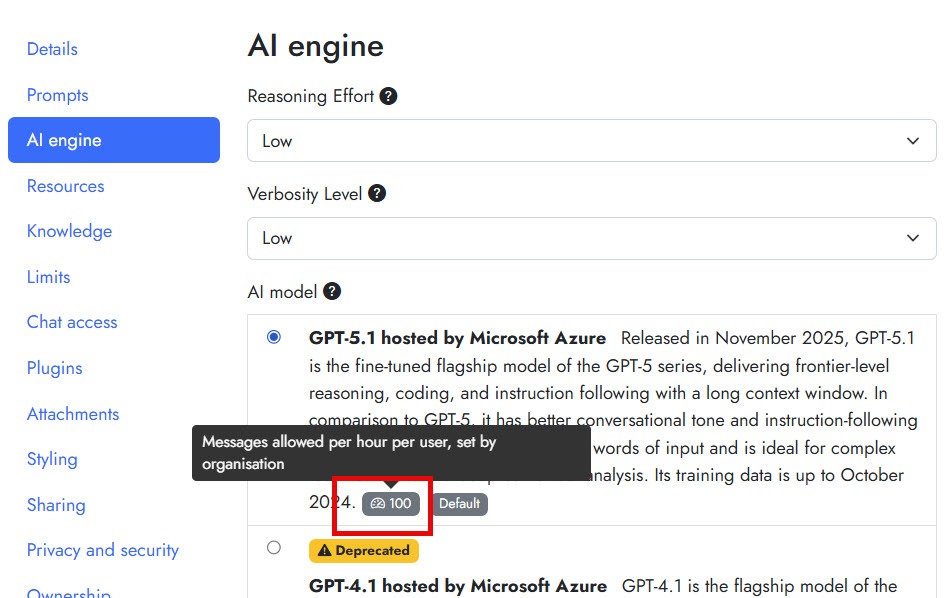
- The limit for most agents is 100 messages per user / per hour / per agent.
- The error message “Too many messages sent recently, please wait a while and try again later” will be displayed once a conversation with an agent reaches this limit.
- A visual indicator will display for your chosen AI model in the AI engine section which looks like this:
-
The default settings that come with your Agent are the most desirable.
In general, there are only 2 main areas to edit in Cogniti when you are first getting started:
- Prompts
- Resources
You do not share your agent with students using the URL provided in this Cogniti sharing area – sharing with students is done in Quercus only.
If you wish to share an agent with other course staff for testing, but not students. You can create your Quercus page as normal, but leave the Quercus page unpublished, so only other Teacher and TA roles in the course can access.
These particular settings should be checked if your students are not able to chat with your agent from within your Quercus course:
Chat Access:
- In the Chat Access settings area, leave the setting under “Who is authorized to chat with this agent” as “Anyone in the organization”
- You control who has access to chat with your Agent via your Quercus course.
- By adding your agent in your Quercus course, only those with access to your specific Quercus course will have access to chat with your agent.
- This permission does not allow anyone to discover or find your Agent in any other way than through your Quercus course.
- Only the Owner and Specified Admins (via Sharing) can find the agent.
Sharing:
- Leave the sharing options as “only the owner and specified administrators”
- If you wish to edit (co-author) your agent with other specific people, you can enter their names. Please note, there is no tracking of changes to an Agent, so if you have multiple people editing the same agent at the same time you will not have any record of who made which changes.











Guides
-
-
-
Controlling agents:
- How do I design a good system message?
- What are some good practices around creating agents for use in education?
- What are some examples of system messages?
- How do I best format my system messages?
- Can AI help me improve my agent’s instructions?
- How do I put a rubric or other table into the agent?
- How do I reduce hallucinations in my agent’s responses?
- How can I get my agent to refer to its resources?
-
Please visit our CTSI guide on Cogniti Terms of Use.
A Terms of Use acknowledgement is presented to students upon first use of the chat tool, and can be accessed at the bottom of every Cogniti chat window along with a reminder about not sharing private information and data collection:
Videos
-
U of T / CTSI – Introduction to Cogniti: U of T’s AI Tool to Support Student Learning
May 21 2026, 45 minutes. (U of T UTORid login required to view).
-
U of T / CTSI – Cogniti Onboarding: Setting Up Your AI Tool for Student Use
May 27 2026, 50 minutes. (U of T UTORid login required to view).
-
U of T / CTSI – Customizing Cogniti: Aligning for Different Learning Goals
May 29 2026, 45 minutes. (U of T UTORid login required to view).
-
-
-
Considerations
For non-teaching and learning related uses or questions about this tool, please contact the AI Kitchen – ai.kitchen@utoronto.ca
Privacy Considerations:
- No data training is used with Cogniti.
- To read more about general copyright and AI considerations, please visit this helpful resource from the University of Toronto Libraries.
Security Considerations:
- The University of Toronto instance of Cogniti has been evaluated by the University’s Information Security team, and it has been deemed safe to use for up to Level 3 (Three) data (e.g. student names/numbers/grades), but is not approved for level 4 University data.
- Reference the University of Toronto Information Security Data Classification Standards for full information.
- Additional guidelines on using artificial intelligence from the University of Toronto Information Security team.
Last Modified:
16 September, 2026
This work is licensed under a Creative Commons BY-NC-SA 4.0 International License