
Quercus Portfolios
Quercus (Canvas) Portfolios can be used for collecting, organizing, and sharing evidence of learning. Instructors can use it to create Evaluation Portfolios for structured assessment or Showcase Portfolios to curate and share work more openly.
Evaluation Portfolios are designed for guided, competency-based assessment. They can draw on one or more Quercus courses, link to assignments and competencies, and help instructors track learner progress over time.
Quercus Portfolios maybe be especially useful for reflective learning, outcomes-based assessment or capstone work. Portfolios are a good fit when instructors want a structured portfolio process inside Quercus, especially for competency-based or longitudinal assessment.
Portfolios will be available in Quercus starting on May 4 2026.
The Quercus “Portfolio” is not the same as the legacy ePortfolio tool in Quercus. Legacy ePortfolios are scheduled to retire on June 30, 2026. Do not use “ePortfolios (Legacy)” other than for exporting.

Please review our CTSI guide on Exporting Your Quercus (Canvas) ePortfolio.
Most importantly, you must download your existing ePortfolio(s) by June 30:
- In Quercus, select Account
- Select “ePortfolios (Legacy)”
- Open your ePortfolio
- Scroll to the bottom and select “Download the contents of this ePortfolio as a zip file”
Your portfolio will download as a .zip file. After downloading, you may need to unzip (extract) the file to access your content. You will need to rebuild your portfolio manually by uploading files and copying your content into the new tool.
Prefer a visual walkthrough? Watch Canvas’s short video (0:44) showing how to download your ePortfolio.
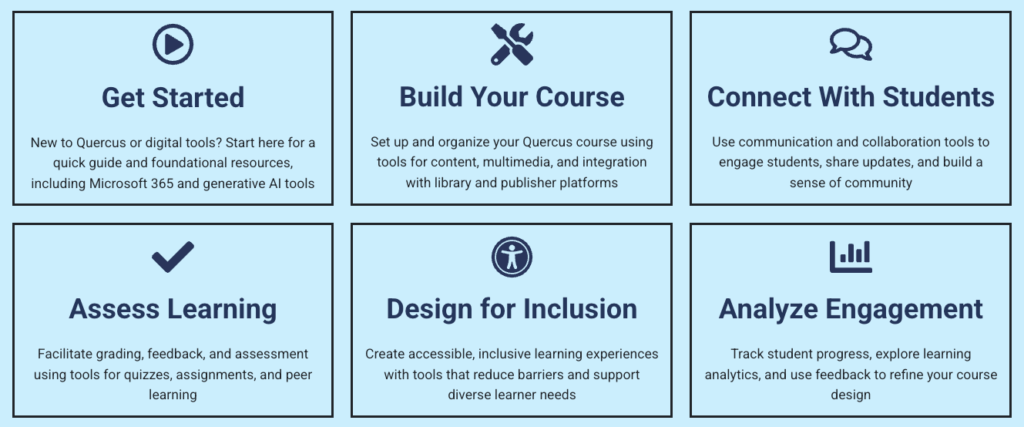
The Academic Toolbox helps you...
Typical Course Format?
Most tools in the Academic Toolbox can assist in both online and face-to-face courses. Many tools can provide benefits in either synchronous or asynchronous teaching. Some tools have been primarily designed for one format or another (synchronous/asynchronous), however, may be adapted for any format depending on your pedagogical goals.
To learn more about different teaching modalities, please consult our Online Teaching & Learning page, arrange a consultation with a CTSI Teaching Liason, or contact your Divisional support representative.
Where can I get more support?
Related resources / similar tools
How to Get Started
Access Quercus Portfolio by selecting Account (1) from the main navigation menu and then Portfolio (2).

From there, you can view portfolios that are created under Evaluation, your own portfolios under Showcase, or any portfolios assigned to you under Assigned.
Before creating a portfolio, decide which format you want:
- An Evaluation Portfolio for guided assessment, or
- A Showcase Portfolio for curation and sharing.
Instructions
-
1. Create an Evaluation Portfolio
To create an Evaluation Portfolio, you must be enrolled as a Teacher, TA, or Course Designer. Select one or more courses, assign the portfolio to students, add requirements, create sections, save as a draft, and publish when ready.Instructors can add evidence requirements by linking an existing course assignment or creating a new requirement. This supports structured collection of evidence aligned with course or program expectations.
Evaluation Portfolios include a Learner Dashboard that shows student progress and portfolio status. Instructors can see how many portfolios are Pending Review, In Progress, Completed, or Not Started, and can search or filter by student or status.
Instructors can review submitted evidence and mark it Complete, Request revision, or Not complete. You can also leave comments. When requesting a revision or marking evidence incomplete, a comment is required.
Please note:
Evaluation portfolios can only be accessed by the instructor (or TA, etc.) that created them. You cannot have multiple members of a teaching team access the same Evaluation portfolio, even if they are all in the same course. Students can still create a share link that can be sent to other instructors/TAs, but that would be view-only for the final portfolio.
- Assignments must be Published to add to a Portfolio.
- If an instructor sends something back to a student for revision, there is a ‘delete’ button on the student end that deletes everything, including all instructor comments.
- More information is available on how students submit a Course Assignment in Evaluation Portfolios.
-
1. Create a Showcase Portfolio
Instructors can create a Showcase Portfolio for their own work. You can add a portfolio name, instructions, an optional cover image, requirements, and sections, then save the portfolio as a draft or publish it.
In a Showcase Portfolio, instructors can add evidence from a course assignment or create new evidence such as a project, extracurricular activity, or professional experience. New evidence can include a title, description, tags, reflection, files, and links.
Published Showcase Portfolios can be exported as PDF or HTML, or downloaded as files. Instructors can also generate a shareable link.
Please note:
Showcase portfolios can also be created by students. Students can link their assignments to the Showcase portfolio or they can make a public share link – it can’t be both. If a student creates a public share link, and then link their assignment to the Showcase portfolio, the public share link will no longer work.
Guides
-
Instructor guides:
- View Portfolios as an instructor
- Create an Evaluation Portfolio as an instructor
- Create a Showcase Portfolio as an instructor
- Add evidence in an Evaluation Portfolio as an instructor
- View Learner Progress Data in Evaluation Portfolios as an instructor
- Add evidence feedback in Evaluation Portfolios
- Add evidence in a Showcase Portfolio as an instructor
- Export and share Portfolio content as an instructor
Last Modified:
4 May, 2026
This work is licensed under a Creative Commons BY-NC-SA 4.0 International License
