
Microsoft Copilot Chat

The Microsoft Copilot service is currently available to the public, but the public version does not have full privacy and data protections; instead, the University has access to an enterprise edition, which does conform to the University’s usual privacy and data protections. Faculty, students and staff (with access to the Microsoft toolkit) can access this protected version of Copilot. Microsoft Copilot Chat is based on the latest OpenAI models.
With Microsoft Copilot Chat, you can ask the AI chatbot questions and get detailed responses with footnotes that link back to original sources.
- Uses web search and will provide links to the sources of information it quotes/finds.
- Your chat data is not used to train models. The data is not available to Microsoft.
- Copilot cannot access your other Microsoft 365 data by default. It can not read all of your Outlook emails, Teams messages, OneDrive or SharePoint files, however individual files can be chosen/uploaded and used as information by the chatbot when compiling a response. You can upload files and ask contextual questions, for example, “Make 10 quiz questions based on chapter 3 of this pdf” and attach a pdf.
Check its work!
Remember, the answers a Generative AI tool gives may not be correct (otherwise known as hallucinations). It will be up to you to determine if the results are acceptable for your needs. Results should never be considered as the authoritative source on a topic or issue.
You must be logged into your University of Toronto Microsoft 365 account.
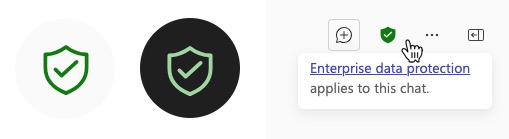
Ensure you have properly signed into your University account and see the enterprise shield symbol/icon, otherwise your interactions with the AI-powered chat tool will not be in the protected environment:
Please note the features may change based on Microsoft release.
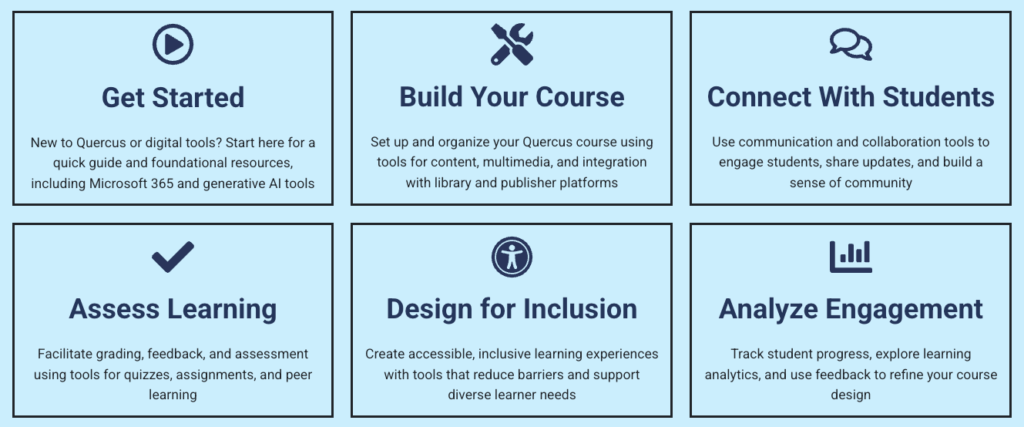
The Academic Toolbox helps you...
Typical Course Format?
Most tools in the Academic Toolbox can assist in both online and face-to-face courses. Many tools can provide benefits in either synchronous or asynchronous teaching. Some tools have been primarily designed for one format or another (synchronous/asynchronous), however, may be adapted for any format depending on your pedagogical goals.
To learn more about different teaching modalities, please consult our Online Teaching & Learning page, arrange a consultation with a CTSI Teaching Liason, or contact your Divisional support representative.
Where can I get more support?
Related resources / similar tools
How Are Faculty Using This Tool
Leveraging Copilot to Develop Clinical Case Studies
Emily Wood teaches in the Department of Speech Language Pathology and is currently is the instructor for several courses spanning the two-year clinical master's program, including SLP1520H: Principles of Clinical Practice; SLP1535H Advanced Principles of Clinical Practice; SLP1527H: Clinical Analysis of Communication and Swallowing disorders; and SLP1521H: Alternative and Augmentative Communication. She has also taught SLP1505Y:… Read more about Leveraging Copilot to Develop Clinical Case StudiesAI-Assisted Writing & Reflection in Language Learning
Sophia Bello teaches French as a Second Language (FSL) and linguistics courses. Her teaching focuses on the pedagogy of FSL, specifically the integration of active learning strategies, digital tools, and experiential learning opportunities. She utilizes Microsoft Copilot to transform her personal bullet points into well-structured paragraphs, providing more positively framed and constructed student feedback on… Read more about AI-Assisted Writing & Reflection in Language LearningHow to Get Started
You can access Microsoft Copilot Chat by navigating to m365.cloud.microsoft/chat and follow the prompts to login to your University of Toronto Microsoft 365 account.
Your interactions with the AI-powered chat tool will not be in the protected environment if you do not sign in with your University of Toronto account.
You may also find the Copilot Chat icon / access in other Microsoft 365 tools such as Teams, Outlook, etc.:

How to Use This Tool
In addition to text generation using the Chat feature, “Create” options from the Copilot menu include:
- Create an image
- Edit an image
- Design an infographic
- Create a: Story, Poster, MS Form, Banner, Document, Presentation, Workbook.
- Create a video
- (videos saved in OneDrive or Sharepoint can be edited with Microsoft Clipchamp)
Teach in the Microsoft 365 Copilot App is a home where educators can access AI-powered teaching tools to create lesson plans, draft materials like quizzes and rubrics, and quickly make modifications to language, reading level, length, difficulty, alignment to relevant standards, and more. [m365.cloud.microsoft/teach]
Instructions
-
Microsoft Copilot Chat can be accessed via the University licenced Microsoft 365 service or the URL: m365.cloud.microsoft/chat
Copilot Chat may also be available from the interface of many other Microsoft services like Outlook, etc. (web. mobile and desktop applications). Just look for the Copilot logo:

-
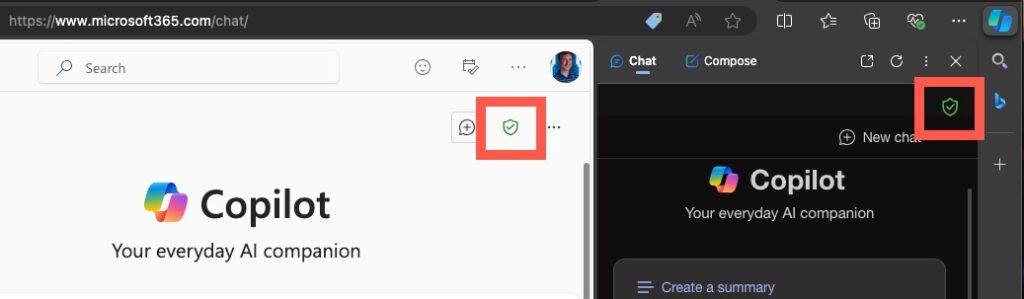
The enterprise shield symbol/icon will appear near the top right to verify you are connected to the University of Toronto Microsoft Copilot:
-
Generative Artificial Intelligence in the Classroom: FAQ’s around topics such as Student Use of Generative AI and Instructor Use of Generative AI.
- Instructors should be clear about their expectations for using generative AI tools in their course.
- Include your expectations in your syllabus and discuss openly with your class. Is it important to indicate how your acceptable use relates to the course learning goals, so students understand the reason why they are or are not allowed to use generative AI tools. The Sample Syllabus Statement resource, produced by the OVPIUE, provides advice and examples to include in your own syllabus.
- Try it for yourself; you do not need to become an expert in using Generative AI tools. Trying out a few tools for yourself will at least give you an idea of what your students are able to do when interacting with your course content.
- Never upload or use information which may be considered confidential, sensitive, private or personal as part of prompting an AI too. And do not use material where you do not own the copyright – don’t upload other people’s work, especially student work, where you do not have written consent to do so.
- Consult university policies and guidelines. In particular, instructors can visit the OVPIUE Generative Artificial Intelligence in the Classroom: FAQ’s site for more information.
-
A prompt is natural language text describing the task that an AI agent or chatbot should perform. Prompt writing (sometimes known as prompt engineering) is the process of structuring a prompt that can be interpreted and understood by the AI system. In the context of using Microsoft Copilot, a prompt can be a textual query such as “What is the Pythagoream theorem?”, or a command such as “Write a poem about the sun”, or a short statement such as “Your last response requires more details.”. How to write a prompt for AI (Microsoft Education blog).
For advanced prompt ideas, consult these education focused prompt libraries:
- AI for education prompt library (aiforeducation.io/prompt-library)
- More useful things, Prof. Ethan Mollick (moreusefulthings.com/prompts)
- Microsoft prompts for education repository (github.com/microsoft/prompts-for-edu)
Prompt writing guidance –
Start with basic information:
- Be clear and specific.
- Provide relevant context and background information.
- Provide examples.
or follow the 3 Ps:
- Provide a persona – “You are a university instructor in the department of anthropology.”
- Provide a purpose – “You are developing a 12-week graduate course on ethnographic research methods.”
- Outline your parameters – “Generate a syllabus for this course. Start with a description, followed by five learning outcomes. The learning outcomes should follow Bloom’s taxonomy. Generate topics for each of the 12 weeks. The topics should build on each-other sequentially. This is a seminar format.”
Try some more advanced prompt writing techniques:
ROLE (Act as a…)
TASK (Create a…)
REQUIREMENTS (Be sure to…)
OUTPUT (Turn into…)
• Instructor (of a course in..) • Learning Designer
• Researcher
• Committee Chair
• Tutor/TA
• Presenter
• Set of X quiz questions • Interactive quiz
• Course outline
• Active learning activity
• Lesson
• Summary
• Include • Exclude
• List
• Explain at a grade X level
• Show all steps
• Limit the length to X
• Plain text • Bulleted list
• Table
• CSV file with X number of rows
• An image
• HTML/coding
Thinking about incorporating a UofT approved chatbot as a virtual tutor for your course? Consult the CTSI AI Virtual Tutors – Effective Prompting Strategies guide.
-
For most University users, a plus [+] icon should be available near the bottom left of the Microsoft Copilot chat box:
Microsoft Copilot cannot access all organizational content automatically, however users can actively provide it individual files as part of their prompt for Copilot to use. Users can include organizational content as part of their prompt in three ways:
- Users explicitly type or paste this information directly into the chat.
- Users upload a file by selecting the paperclip icon in the chat box. They can also drag and drop a file into the chat box. Uploaded files are stored in a user’s OneDrive as part of enterprise data protection.
- Users type a prompt into Copilot in Edge after enabling the ‘Allow access to any webpage or PDF’ setting, and an intranet page is open in the browser. In this scenario, Copilot may use this content to help answer questions.
In all cases, Copilot does not use your data to train foundation models and enterprise data protection (EDP) applies.
-
Yes. Instructors may wish to use the technology to demonstrate how it can be used productively, or what its limitations are. Consult CTSI’s information and advice about how you might use generative AI as part of your learning experience design.
Yes, you can ask your students to use the protected version of Microsoft Copilot, as it is an approved and vetted tool part of the U of T academic toolbox.
However, keep in mind that asking or requiring your students to access tools other than Microsoft Copilot is complicated by the fact that they have not been vetted by the University for privacy or security.
-
This Microsoft Copilot edition (Commercial data protection for Microsoft Copilot) has been evaluated by the University’s Information Security team, and it has been deemed safe to use for up to Level 3 (Three) data.
Guidelines on using artificial intelligence (University of Toronto Information Security)
Furthermore, users should only use Copilot with their own content or content available publicly but not where the copyright holder has not granted permission. To read more about copyright and AI considerations, please visit this helpful resource from the University of Toronto Libraries. Where possible, de-identify (replace personally identifiable information fields with one or more artificial identifiers) or anonymize (remove personally identifiable data) data sets to avoid any privacy implications.
-
Currently, there are two different versions of Microsoft Copilot:
- Microsoft 365 Copilot Chat is an AI-powered assistant that helps answer questions, generate content, summarize information, and support everyday chatbot-based tasks.
- Free for U of T faculty, staff, and students
- Enterprise-grade data protection
- Microsoft 365 Copilot is a premium, fully integrated assistant embedded within apps like Word, Excel, Outlook, and Teams.
- Requires a paid license
- Only available to faculty and staff
- Requires a signed confidentiality agreement
Please consult the M365 Copilot Enterprise Applications and Solutions Integration (EASI) website for more information.
-
The University of Sydney has created a AI in Education resource for students, built by students to provide ways students can use generative artificial intelligence productively and responsibly as part of their learning journey in university.
A collection of sample student prompts from OpenAI for ChatGPT (but the same prompts will work for students with our University licenced Copilot Chat). This give a nice overview of different ways students can use a chat tool for learning, and possible ideas on how instructors might be able to incorporate a Generative AI chat tool (like Cogniti or Copilot Chat) into course work.


Guides
-
Generative Artificial Intelligence in the Classroom (Office of the Vice-Provost, Innovations in Undergraduate Education – VPIUE)
-
- Sample Syllabus Statements
- About Generative AI
- Student Use of Generative AI
- Instructor Use of Generative AI
-
-
Teaching with Generative AI at U of T (Centre for Teaching Support and Innovation – CTSI)
-
- Sessions and Workshops
Instructor-facing teaching and learning sessions with a focus on generative AI tools and assignments. - What’s happening at U of T
Instructor profiles and assessments and strategies being used that incorporate generative AI. - Teaching with Generative AI
What to consider when incorporating generative AI tools into your teaching. - Tips to Get You Started
Are you new to generative AI? Some suggestions to get you started. - Institutional Guidance
Institutional guidelines and resources - Resources
A curated list of resources to support instructors using generative AI tools in their teaching.
- Sessions and Workshops
-
-
Microsoft Copilot additional information and resources:
-
University of Toronto Information Technology Services (ITS) guide on using Microsoft Copilot to help manage your meeting minutes.
-
Centre for Research & Innovation Support (CRIS) – Generative AI Considerations in Academic Research:
-
Microsoft Copilot Chat – which is the version available freely to all University Faculty, students and staff – uses the “standard access” to features in Copilot Chat.
With the introduction of GPT-5 in Copilot Chat, when you enter in prompt in Copilot Chat, like a question or request, it analyzes the prompt (and any attached files for context) to figure out what model you need. Based on the complexity of your request, Copilot Chat chooses the best way to respond.
Consult the section of the guide How does Copilot Chat analyze prompts for more information.
Copilot will automatically trigger GPT-5 reasoning based on prompt complexity. Users will be able to bypass GPT-5 reasoning and get a direct response by selecting “Get a quick answer.”
Videos
-
-
-
-
Please note, this recording is from February 2024 and it is mentioned that students do not have access to MS Copilot. As of May 2024, students do have access to MS Copilot.
Considerations
For non-teaching and learning related uses or questions about this tool, please contact the AI Kitchen – ai.kitchen@utoronto.ca
Privacy:
-
- No data or conversations are used for model training while using this Microsoft Copilot Chat with enterprise data protection.
- Your chat interactions fall under the same data retention policy as MS Teams chat history, which is currently 30 days.
- To read more about general copyright and AI considerations, please visit this helpful resource from the University of Toronto Libraries.
Security:
-
- This Microsoft Copilot Chat edition (with enterprise data protection) has been evaluated by the University’s Information Security team, and it has been deemed safe to use for up to Level 3 (Three) data, and is not approved for level 4 University data.
- Examples of level 3 data:
- Student numbers/names/marks/records
- Research data classified as confidential by funding agencies/research ethics board.
- Example of level 4 data:
- Personal health information, research data requiring stronger security controls.
- Reference the University of Toronto Information Security Data Classification Standards for full information.
- Additional guidelines on using artificial intelligence from the University of Toronto Information Security team.
Last Modified:
20 May, 2026
This work is licensed under a Creative Commons BY-NC-SA 4.0 International License